Getting started for sharers
This guide is for people who share apps, usually the Member role: open a preview, send the link, and end it when you are done. An admin must already have connected an agent that forwards the app’s hostnames.
What a preview is
Section titled “What a preview is”Houseguest™ lets you show an app that only runs on your company’s private network to a named person outside it, for a set time, with no VPN. A preview is that grant: these hostnames, for these people, until this time. When it ends, or when you revoke someone, access stops at their next click (an SSH or database connection already open runs until it closes).
The people you share with are viewers. They need no account and nothing to install: they open a link, confirm their email address with a 6-digit code, and use the app in their browser.
There are two kinds of preview:
- Invite: each person gets their own single-use link. Up to 7 days. Best for a demo or a review.
- Standing access: one link, and a list of addresses or whole
@company.comdomains allowed to sign in. Up to 1 year. Best for a pilot or a partner team.
Your role. In the console, people who create previews have the Member role; this guide calls them sharers. As a Member you open previews and fully manage the ones you opened: who can view, hostnames, TCP services, extending and ending. You can see agents, domains, members and settings but not change them, and you do not see other people’s previews unless an admin grants you a role on them (for example through a share group). Agents, domains and people are your admins’ job; their guide is Getting started for admins.
Screenshots come from Northwind demonstration workspaces. Their people and hostnames are fictional.
Signing in
Section titled “Signing in”An admin invites you first; you then sign in at console.houseguest.dev. There is no password.
- Enter your work address under Email and press Email me a code.
- Enter the 6-digit code from the email and press Sign in. It works for 10 minutes, once.
- You land on Overview: previews closing soon, recent sign-ins on your previews, and New preview.
Sign in with Microsoft stands in for the code when Microsoft confirms your address, and if your company uses single sign-on, Sign in with single sign-on goes through your identity provider.
Your sign-in lasts 30 days without use in that browser (your admins may set it shorter). If your workspace requires a second step for everyone, the console asks you to add a passkey or authenticator app the first time; you can also add one by choice under your initials › Sign-in and security. After that, Sign in with a passkey skips the email code.
If you belong to more than one workspace, the block at the top of the sidebar is a switcher: click it and pick the workspace.
Open a preview
Section titled “Open a preview”The form has four steps; nothing is shared until the last one.
- Press New preview.
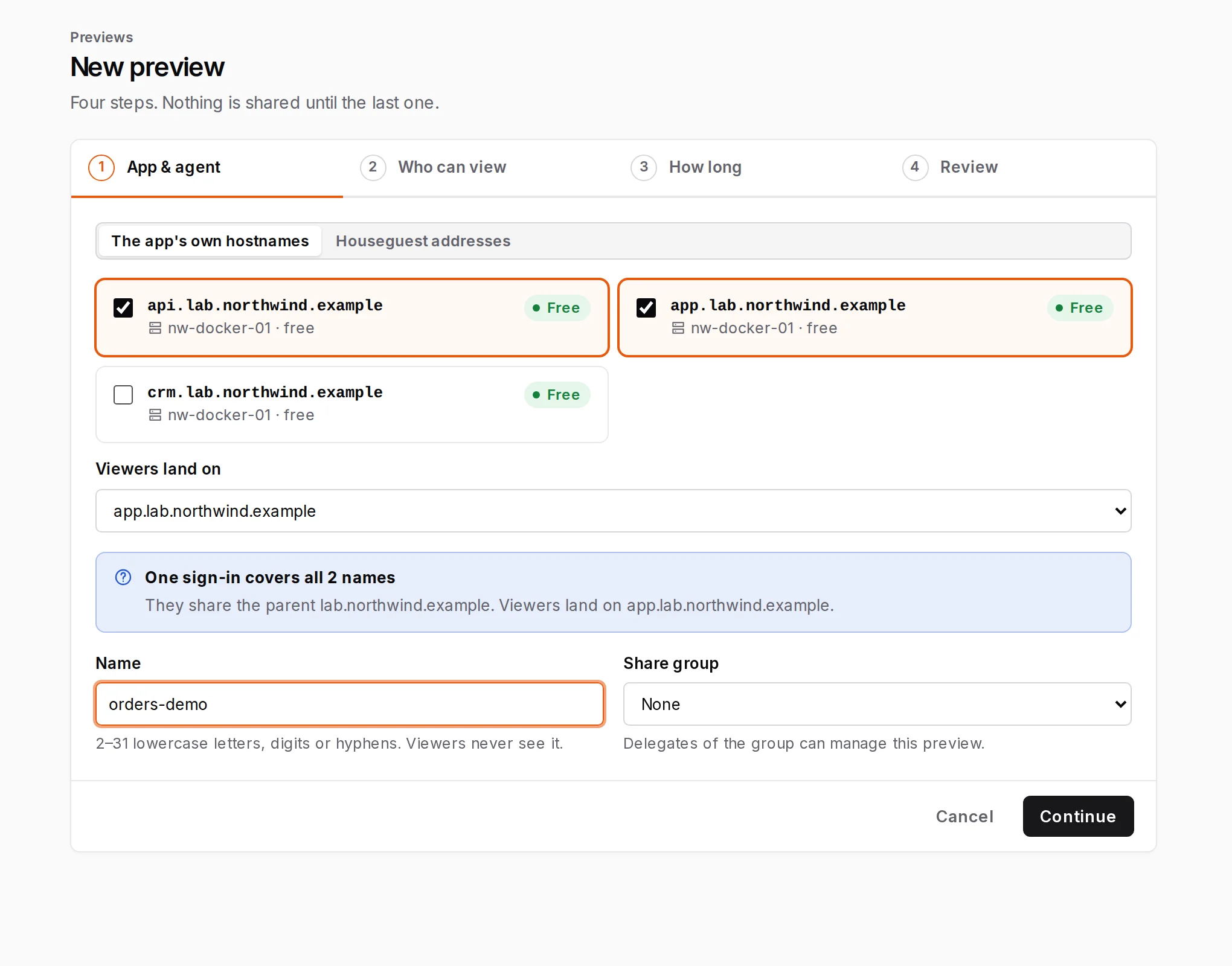
- App & agent. Your admins decide which apps can be shared; you pick from them.
- The app’s own hostnames (such as
app.lab.example.com) or Houseguest addresses (such asapp.acme.houseguest.page, for apps without public DNS). Use the one your admin recommends for that app. - Tick the hostnames this preview covers. Every free one starts ticked, so untick what you do not mean to share. A name already in another open preview cannot be ticked.
- Viewers land on: the page people arrive on.
- Name: 2 to 31 lowercase letters, digits or hyphens, such as
acme-demo. Viewers never see it. - Share group (optional): file it under a share group, such as one per customer. Only groups an admin lets you manage are offered.
- The app’s own hostnames (such as
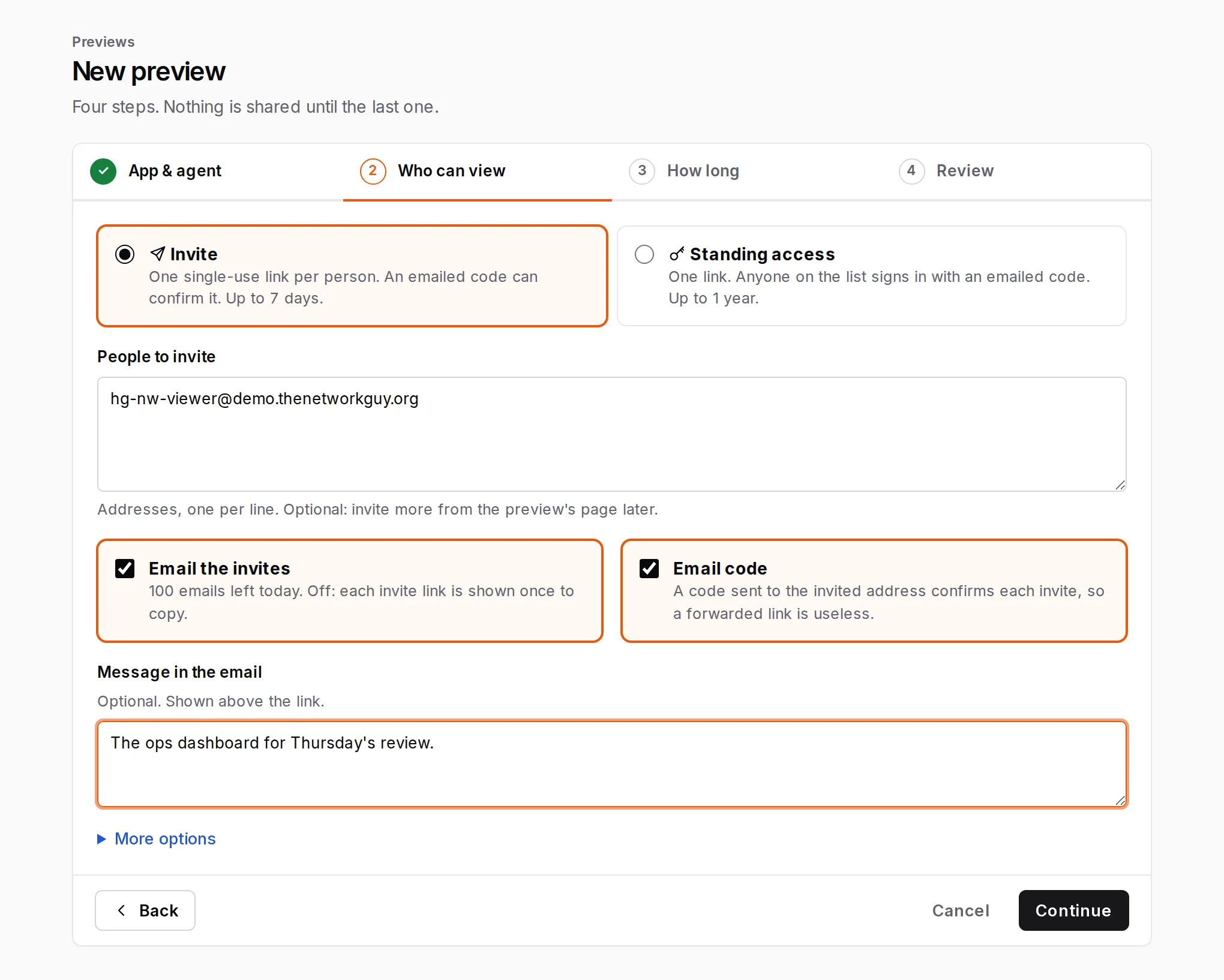
- Who can view. Choose Invite or Standing access (see Standing access). For invites, enter People to invite, one address per line. Keep Email code ticked: the code sent to that address is what makes a forwarded link useless. Then either keep Email the invites ticked, so Houseguest emails each person their link with your optional Message in the email, or untick it to copy the links yourself.
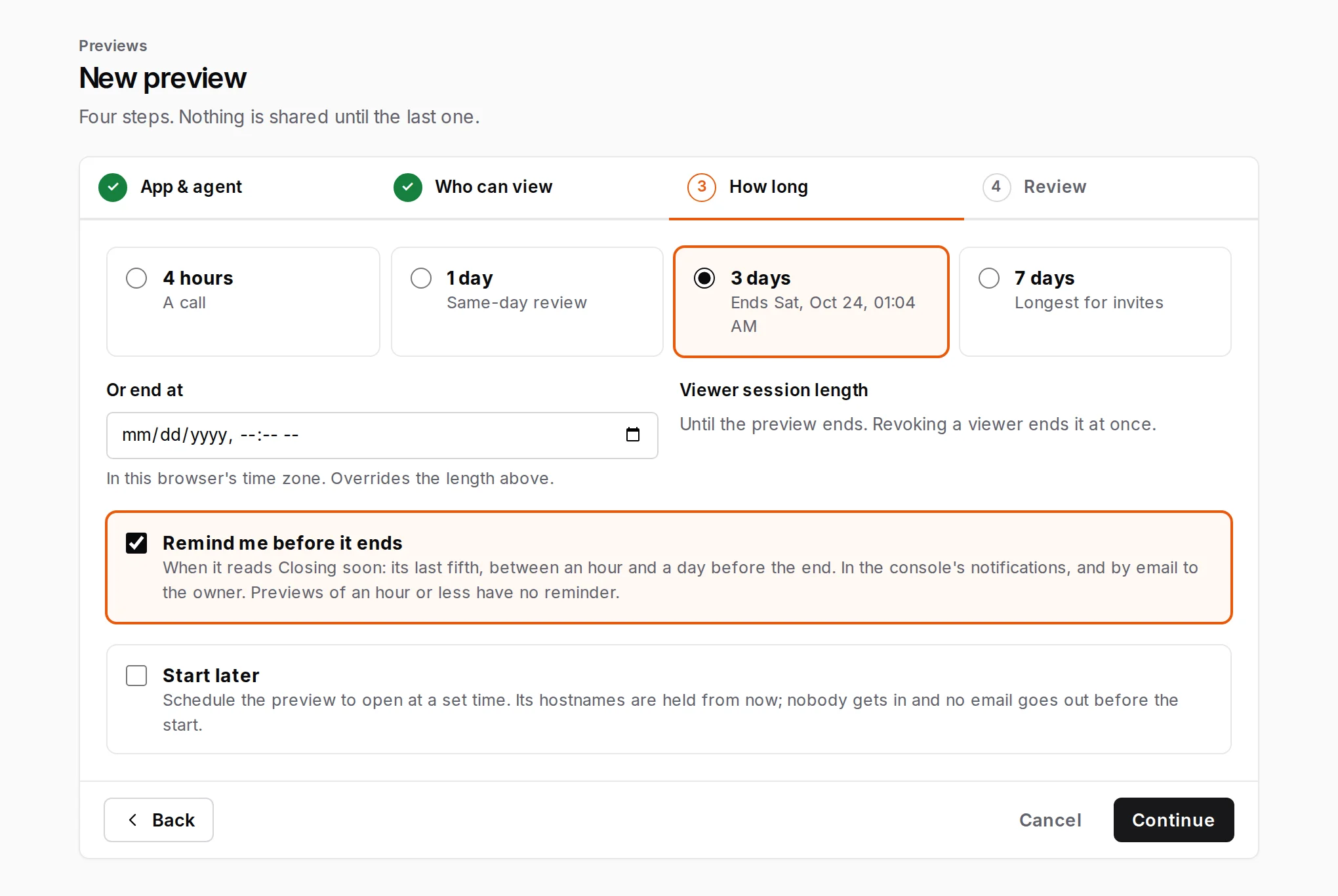
- How long. 4 hours, 1 day, 3 days or 7 days, or a date and time under Or end at. Remind me before it ends emails you when the preview turns Closing soon (with at most a day left). Start later schedules it: nobody gets in and no email goes out before the start.
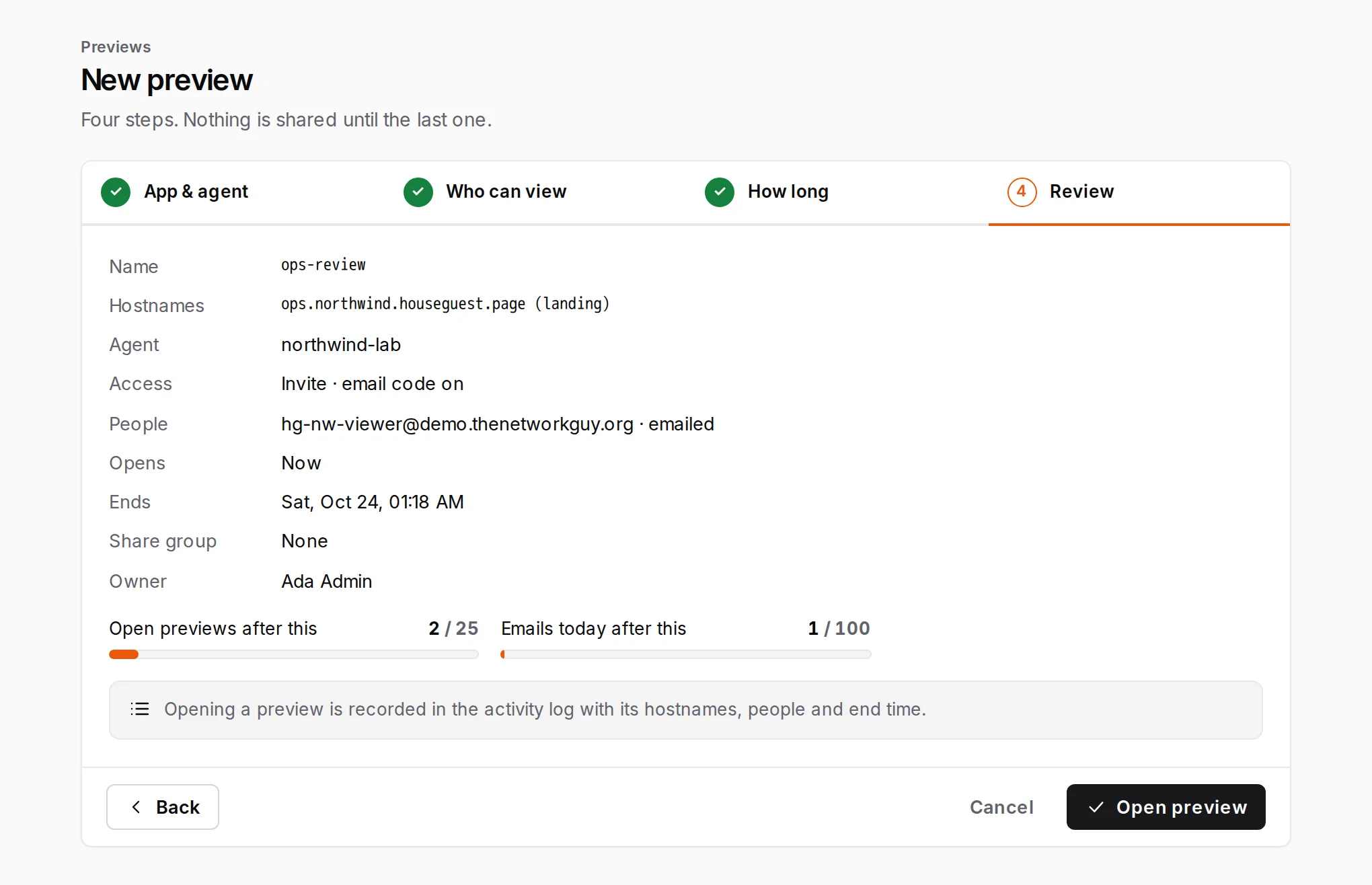
- Review, then Open preview.
If the app calls an API without cookies (health checks, bearer tokens) and viewers see errors, look under More options on the Who can view step, or ask your admin: see Apps that make requests without cookies.
Share the link, and what the viewer sees
Section titled “Share the link, and what the viewer sees”If Houseguest emailed the invites, you are done: each person gets an email saying you shared a preview of the hostname, with your message, their own link and the end time.
If you unticked it, the preview page shows each person’s link once. Press Copy and send it however you like. Each link belongs to one person and works once; do not send one link to several people.
Invite people
Section titled “Invite people”To invite more people while the preview is open:
- Press Invite on the preview page.
- Enter addresses, one per line, and an optional message.
- Choose Send invites, or Create links only to copy each link and send it yourself.
What the viewer does
Section titled “What the viewer does”- Opens the link. A page shows the preview’s hostname, their address and the end time. (The automatic link previews in chat and mail apps do not use up the invite.)
- Presses Email me a code, and receives a 6-digit code at the invited address. (Sign in with Microsoft also works when Microsoft confirms that address.)
- Enters the code and presses Open preview.
- Uses the app. Every hostname in the preview works with that one sign-in, in that browser, until the preview ends.
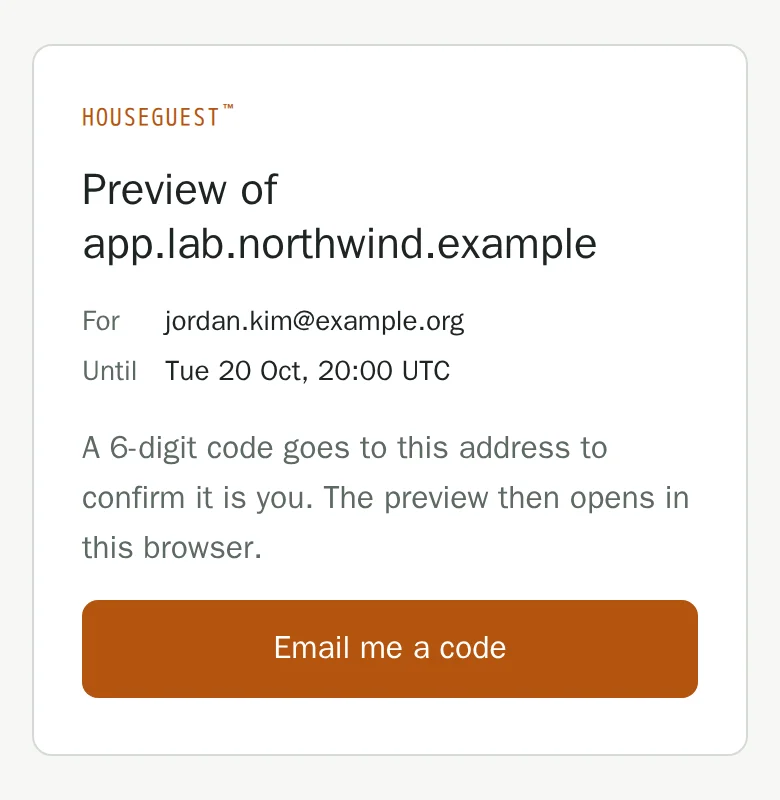
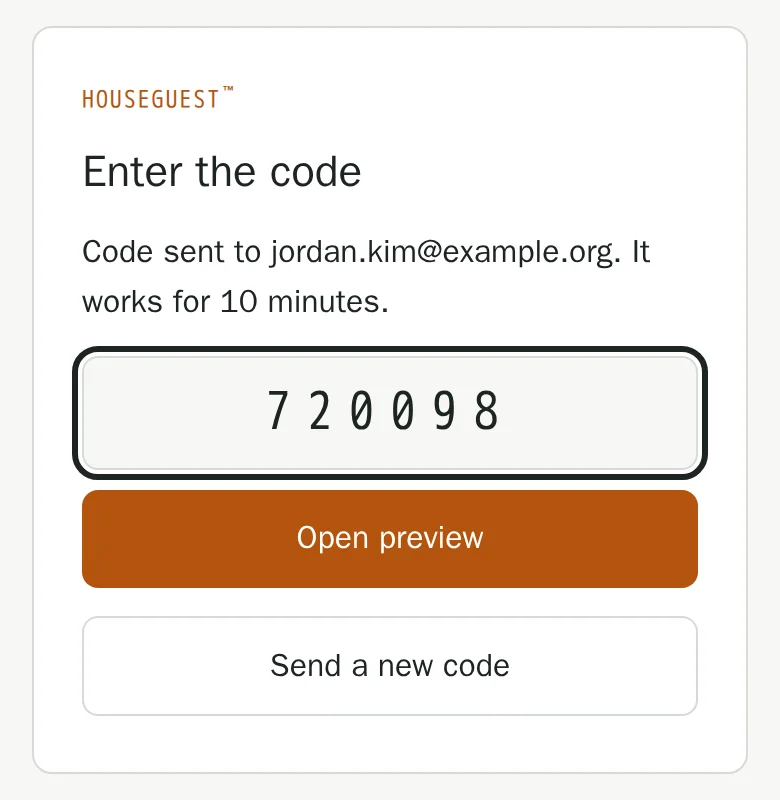
The invite works in one browser. Opened again elsewhere it says This invite link no longer works; a browser without a sign-in says This preview needs an invite. If they still have an unused link, they open it in that browser; otherwise send them a new invite. A page you can send to viewers: What viewers see.
Extend, end or revoke
Section titled “Extend, end or revoke”All three are on the preview’s page (Previews › the preview).
Extend: press Extend and choose + 4 hours, + 1 day or + 3 days (standing access: + 1 day, + 7 days, + 30 days or + 90 days), or Pick a date…. An invite can run at most 7 days from now. Viewers who are signed in stay signed in. Overview › Closing soon also has a one-click Extend, and if you left the reminder on, you get a console notice and an email when the preview turns Closing soon.
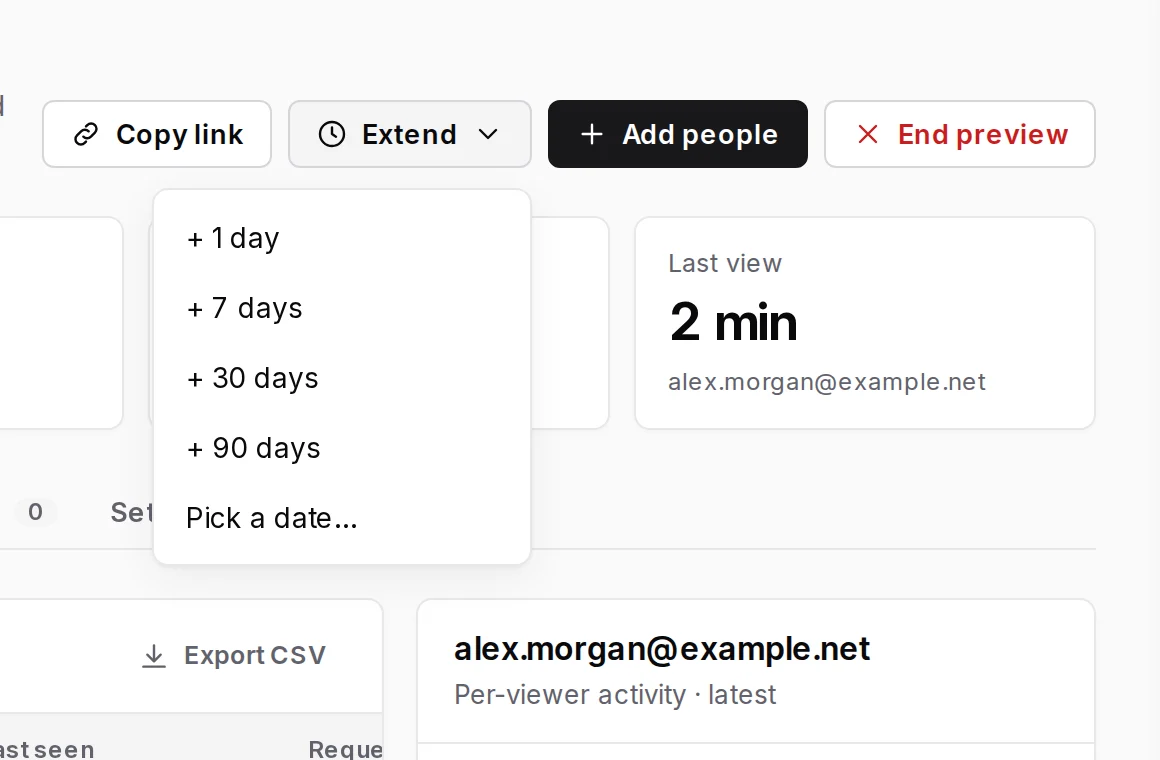
Revoke one person: on the Viewers tab, press Revoke next to them and confirm. Their browser sign-in, any unused invite and any command-line sign-in end at their next request. A new invite lets them back in; nothing old comes back.
End the preview: press End preview, type the preview’s name and confirm. Everyone is turned away with “This preview has ended”, and its hostnames are free for a new preview at once. A preview also ends on its own at its end time; nothing needs cleaning up.
Watching it: the Viewers tab shows each person’s status (Invite sent, Signed in, Revoked and so on), when they were last seen and their requests; click someone for their timeline. Requests shows the newest requests and whether Houseguest let each one through.
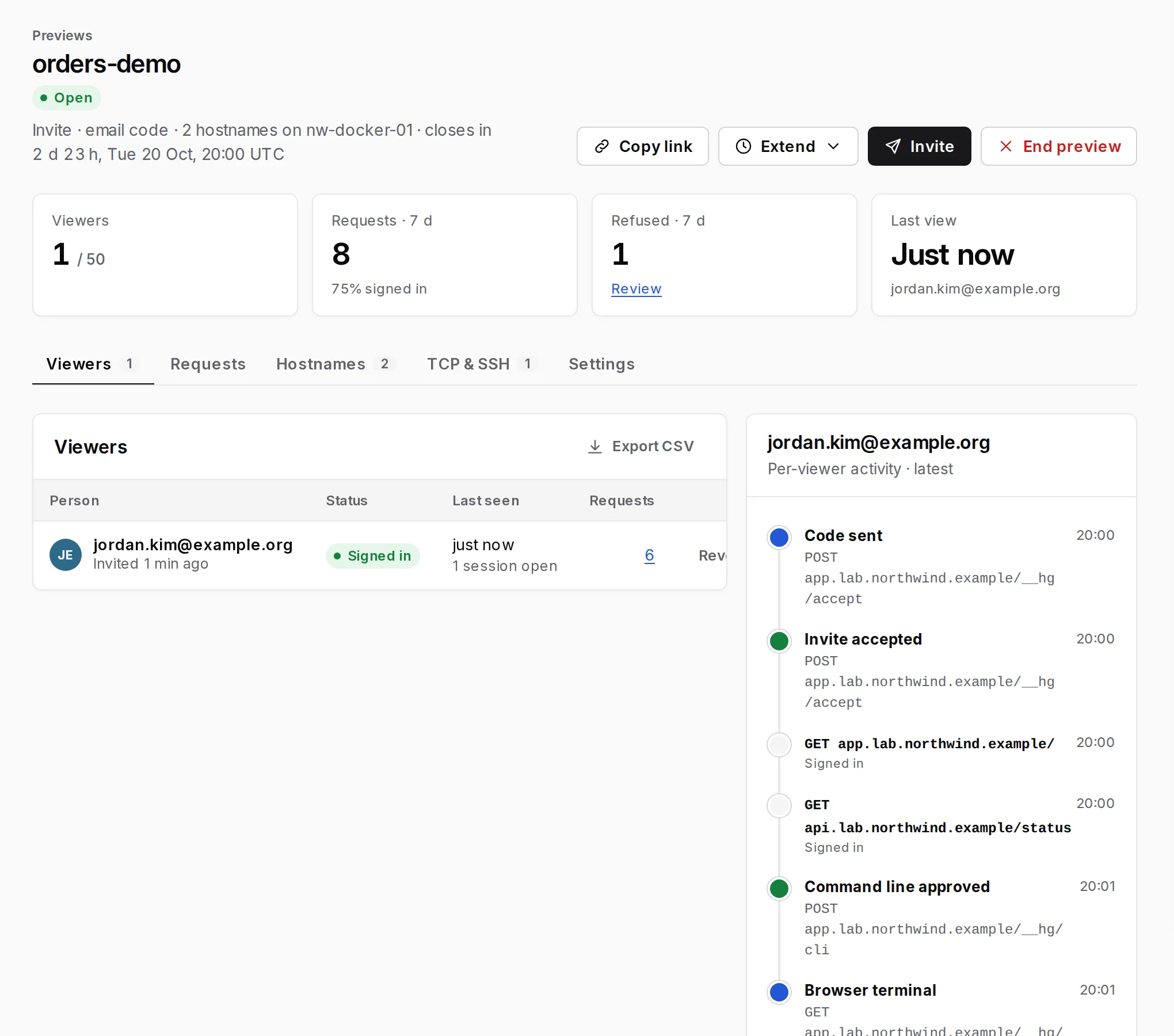
More: Previews and standing access and Viewers and sign-in.
Standing access
Section titled “Standing access”Use Standing access when a group of people needs the app for weeks: a customer’s team during a pilot, a partner’s support desk. There is one link, and anyone on the list signs in with an emailed code whenever they need to.
- New preview (or Standing access › New standing access). Pick the hostnames and a name as usual.
- On Who can view, choose Standing access. Under People on the list, enter addresses, or
@company.comfor everyone at a company, one per line. Email them the link mails each exact address (an@domainentry gets no email). - On How long, pick 30 days, 90 days or 1 year, and a Viewer session length: how long one sign-in lasts before a new code is needed (8 hours to 90 days, or until the preview ends; 7 days by default).
- Open preview, then send people the landing address, such as
https://crm.lab.example.com/. Copy link on the preview page copies it, ready to paste into a message.
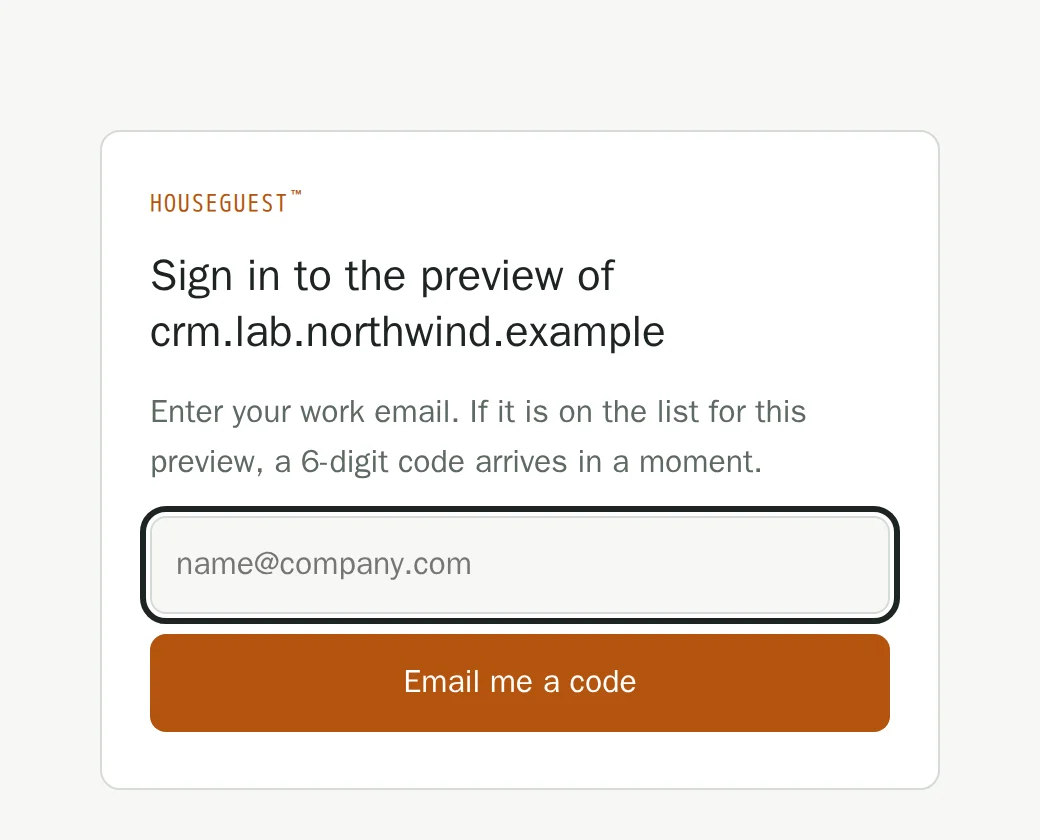
A listed person opens the address, enters their work email, presses Email me a code, and enters the code. The page answers every address the same way, so it never reveals who is on the list; someone not on it just never gets a code.
Change the list on the preview page: Add people to add, Remove next to an entry to take it off (everyone it covered is signed out at once). To let back in someone you removed, add their exact address. Standing access in the sidebar also lists Recent not-on-list attempts, with Add to list.
As a Member you can open standing access for up to a year, but extending one more than 7 days out needs an admin (the Extend past 7 days permission).
Finding your previews: Mine and My groups
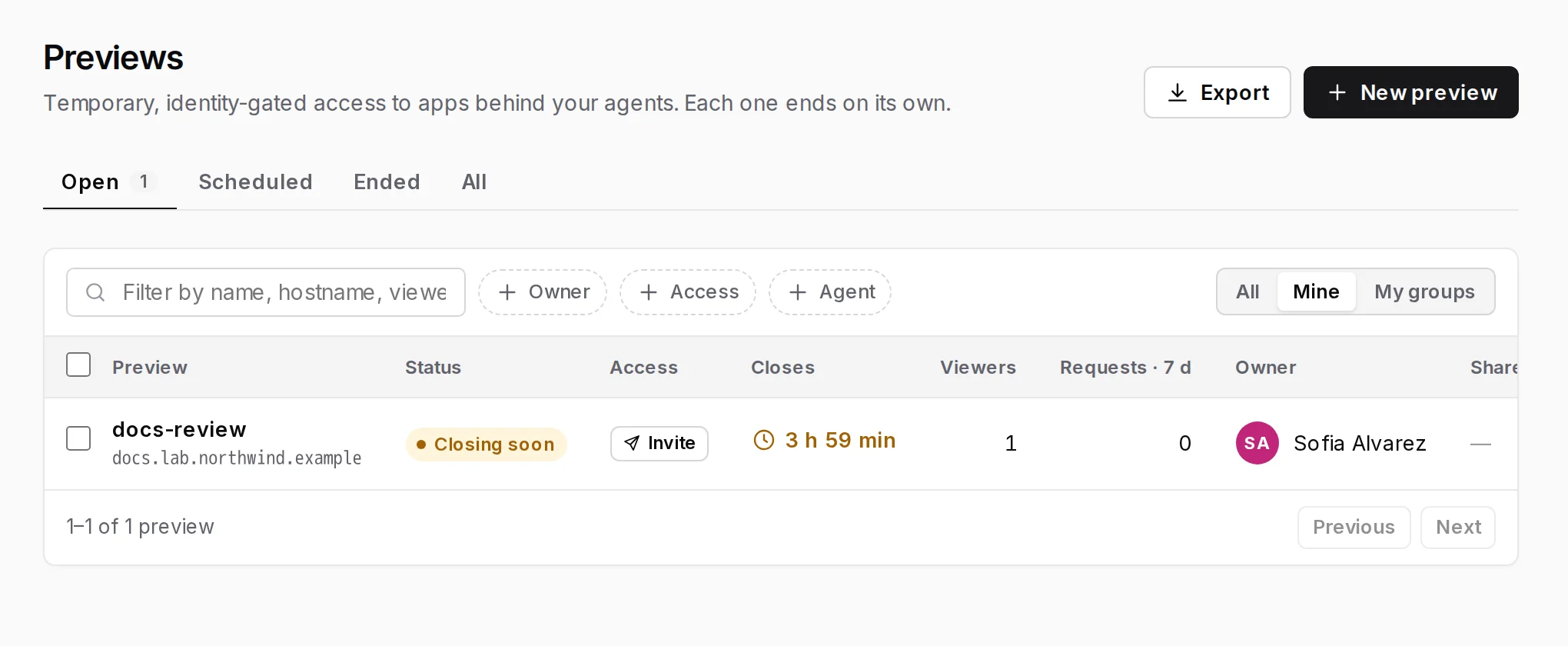
Section titled “Finding your previews: Mine and My groups”Previews lists every preview you can see, with tabs Open, Scheduled, Ended and All. On the right, three buttons narrow it:
- All: everything you can see.
- Mine: previews you opened.
- My groups: previews in share groups where you have been given a role, directly or through a group you belong to.
The search box matches a preview’s name, a hostname or a viewer’s address, and Owner, Access, Share group and Agent filter further. Tick previews to extend them by 7 days, move them to a share group or end them together; Export downloads the list as a CSV.
SSH and other TCP services
Section titled “SSH and other TCP services”If your admins have allowed a TCP service on an agent (an SSH server or a database), you can add it to a preview you own: open the preview’s TCP & SSH tab and press Add TCP service. The tab then shows what to send the viewer. Remove stops new connections at once. TCP services are included on Early access, Pro and Business, not on Free.
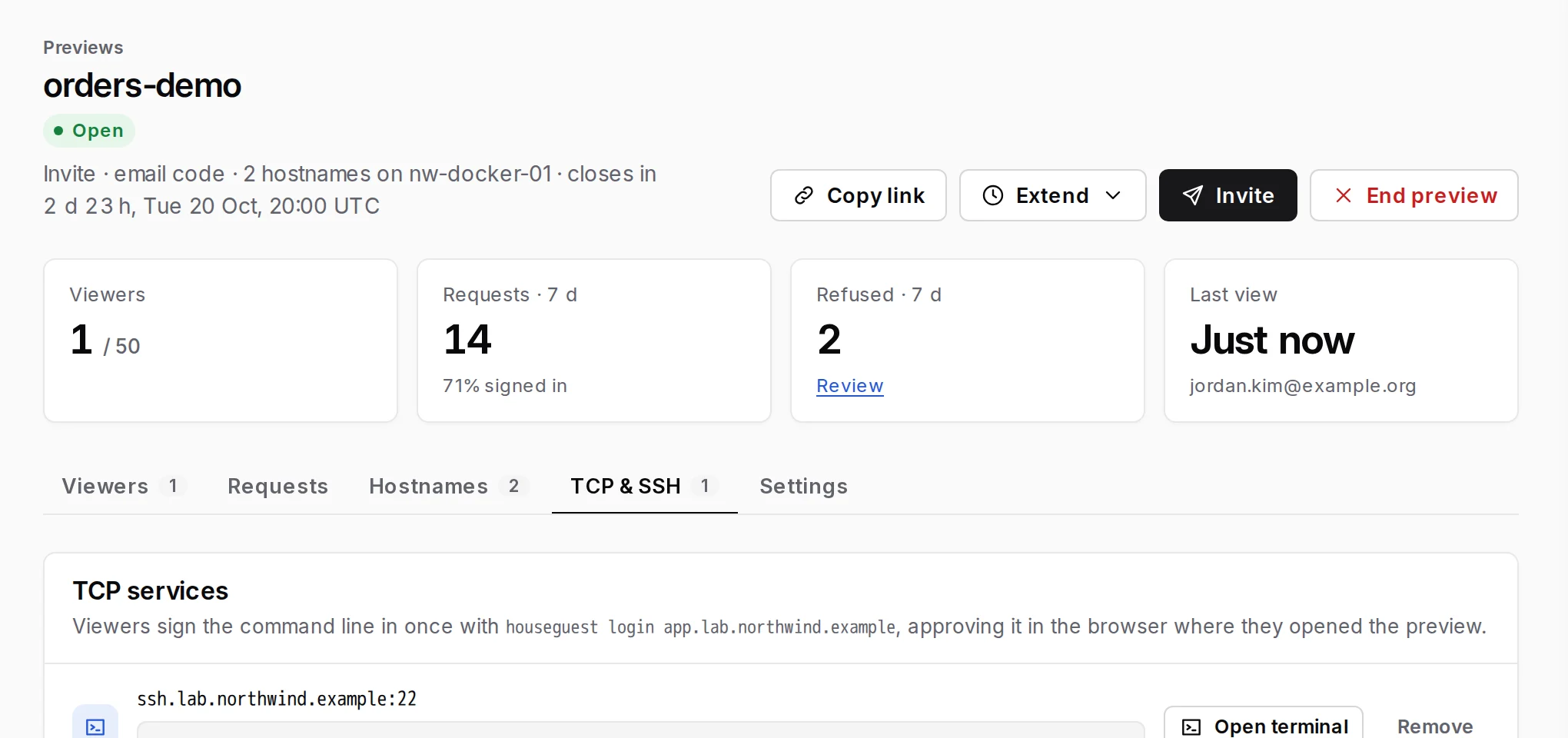
The viewer has two ways in, both using the preview’s own sign-in:
- Browser terminal (SSH only, nothing to install): send them the address behind Open terminal. They enter a username and a password or private key, which go to the server for that session only.
- The
houseguestcommand line (any TCP service, end-to-end encrypted): during early access, the download details come with your workspace’s early-access invitation; pass them on. The viewer opens the preview in their browser once, then runshouseguest login <preview address>, enters the code it prints in that browser and presses Approve sign-in. After that:ssh -o ProxyCommand='houseguest connect %h:%p' user@ssh.lab.example.com, orhouseguest forward 15432 db.lab.example.com:5432and point the client at127.0.0.1:15432.
The command line’s sign-in ends with the preview, a revoke, or houseguest logout. Step by step: TCP and
SSH.
To share a dev server on your own computer instead, with no agent: Share from your computer.
FAQ and troubleshooting
Section titled “FAQ and troubleshooting”Can I forward my invite link to a colleague? No. Each link belongs to one address and works once, in one browser, and the emailed code goes to the invited address. Invite the colleague instead.
The app I need is not offered on the App & agent step. An admin has to connect an agent for it and turn the hostname on. If the name shows as in another preview, that preview must end first (one open preview per hostname).
Can I share hostnames from two different domains in one preview? No; all hostnames in one preview share a parent domain so one sign-in covers them. Open two previews.
Does the viewer need an account, VPN or app? No. A browser and access to the invited inbox. Only TCP
previews may need the small houseguest command line.
Does anyone see my previews? Admins, Owners and auditors see every preview. Other Members do not, unless granted a role on it.
Which limits can I run into? Early-access workspaces allow 25 open previews at once, 50 people per preview, 100 emails a day (invites and codes; it resets at 00:00 UTC), invitations to 50 different people a day and 30 invitations an hour. A viewer can ask for a new code every 30 seconds, at most 5 an hour. See Limits in early access.
How do I test my own preview? Invite your own address and open the link in a private window or another browser, so it does not mix with your console session.
| What happens | Why | What to do |
|---|---|---|
| Viewer never got the invite or code | Spam or quarantine, a typo, or they asked again within 30 seconds | Have them check spam, then Send a new code. On your preview, Requests › Sign-in shows Code sent if it went out. Still nothing: ask your admin |
| “This invite link no longer works” | Already used in another browser, expired or revoked | Press Invite and send a new one |
| “This preview needs an invite” | This browser has no sign-in for it | Open the invite link in this browser, or send a new invite |
| Standing-access person gets no code | Their address is not covered by the list (the page does not say so, by design) | Add their address or @domain |
| Viewer signs in, then the app shows errors or loops back to sign-in | The app calls a hostname or API path that is not in the preview | Ask your admin; see Apps that make requests without cookies |
| “The app is not reachable right now” | The agent behind the app is offline | Tell your admin |
| “This preview has reached the number of people it can have” | 50 people per preview | Revoke someone, or open a second preview |
Not allowed: this needs the "…" permission. |
Your role does not cover that action | Ask an admin to do it or grant it |
| “404 page not found” on a preview link in the console | It is someone else’s preview | Ask its owner or an admin for a role on it |
More: Troubleshooting. Terms: Glossary.
For anything else, ask your workspace’s admins. They can reach us at hello@houseguest.dev.
© 2026 Houseguest Technologies LLC. Houseguest™ is its trademark.7723 Tylers Place Blvd., Box #119, West Chester, OH 45069